# 사용자 선택, 결과 데이터 수집

### 1️⃣ 선택 버튼에 데이터 저장 로직 추가

* 이미 심리테스트가 제작 완료 되었다고 가정 하겠습니다.
* 선택 버튼이 클릭 되었을때 데이터를 저장 해야 합니다.
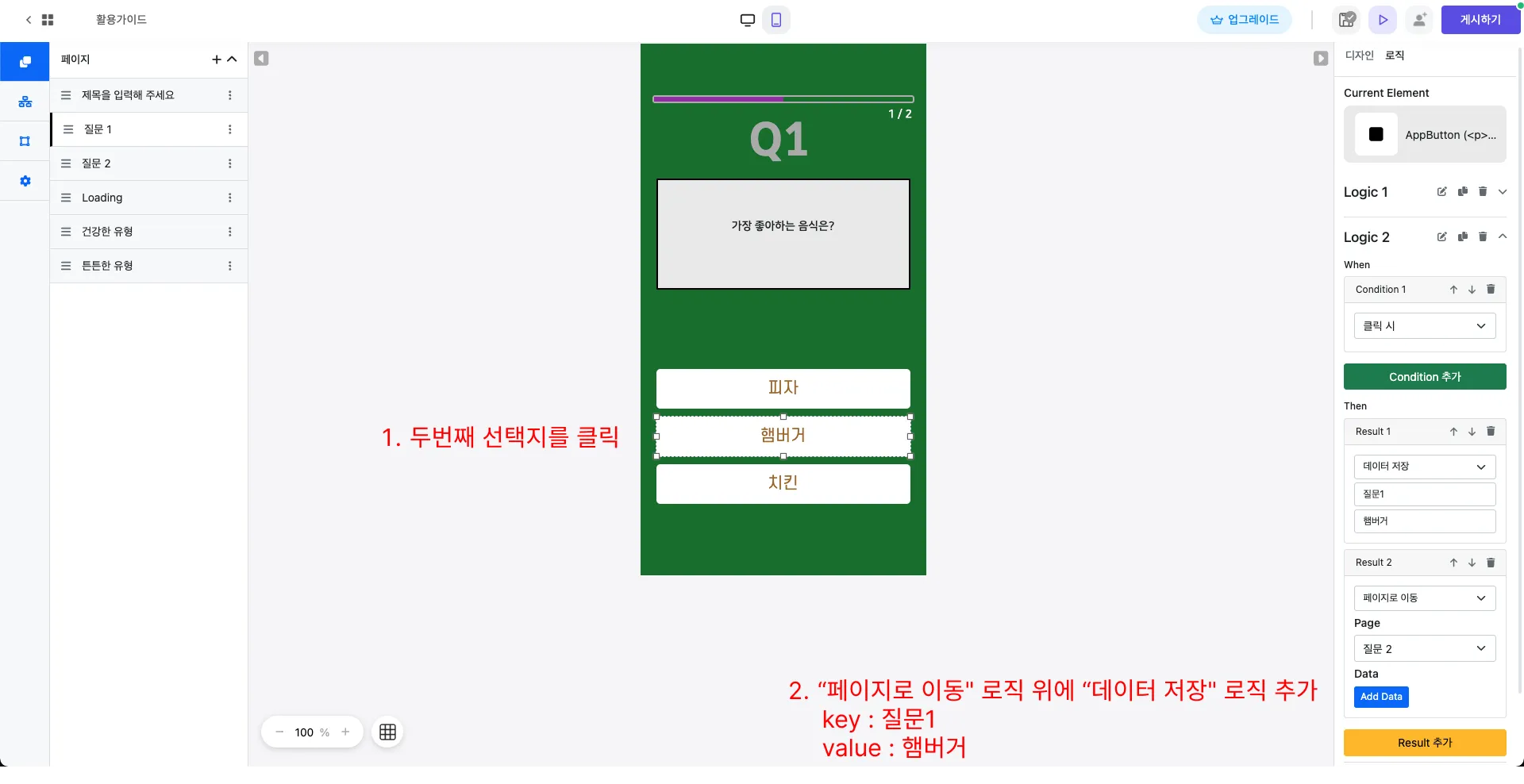
* 첫번째 질문 페이지로 이동하여 선택지 버튼을 클릭하고 우측 "로직" 탭으로 이동합니다.
* 적용된 로직에 이미 "클릭 시" "페이지 이동" 로직이 있을 것입니다. "페이지 이동" 바로 위에 "데이터 저장" 로직을 아래와 같이 설정 합니다.
  * <mark style="color:blue;">Result 유형 : 데이터 저장</mark>
    * <mark style="color:blue;">key : 질문1</mark>
    * <mark style="color:blue;">value : 피자</mark>
    * <mark style="color:blue;">(\* value 는 적절하게 입력해 주세요.)</mark>

<figure><img src="https://www.waveon.io/_ipx/f_webp/static/img/guide/quiz-collect-user-selections-first-button.png" alt=""><figcaption></figcaption></figure>

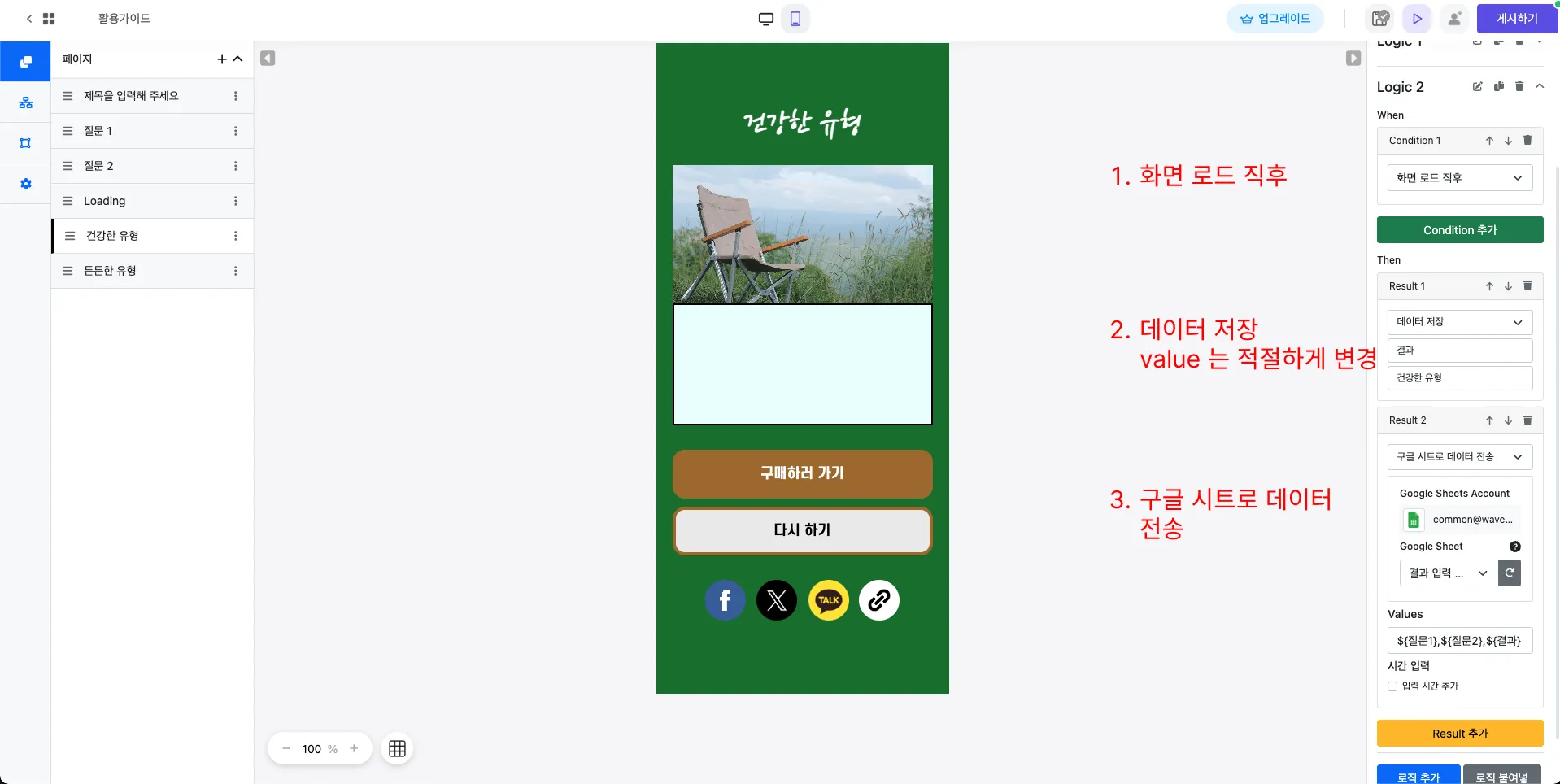
* 두번째 선택지 버튼을 클릭하고 마찬가지로 아래와 같이 설정 합니다.
  * <mark style="color:blue;">Result 유형 : 데이터 저장</mark>
    * <mark style="color:blue;">key : 질문1</mark>
    * <mark style="color:blue;">value : 햄버거</mark>
    * <mark style="color:blue;">(\* 여기서 key 는 "질문1"로 동일하다는 점을 참고해 주세요.)</mark>

<figure><img src="https://www.waveon.io/_ipx/f_webp/static/img/guide/quiz-collect-user-selections-second-button.png" alt=""><figcaption></figcaption></figure>

* 세번째, 네번째 선택지(만약 있다면) 에도 동일하게 적용해 주세요. 마찬가지로 key 는 동일하게, value 만 변경하여 설정해 주세요.
* 다음 질문 에도 동일하게 적용해 주세요. 이번에는 key 는 질문1 이 아닌 질문2 와 같이 적절한 key 를 입력해 주세요.

### 2️⃣ 결과 페이지에서 구글 스프레드 시트로 데이터 전송

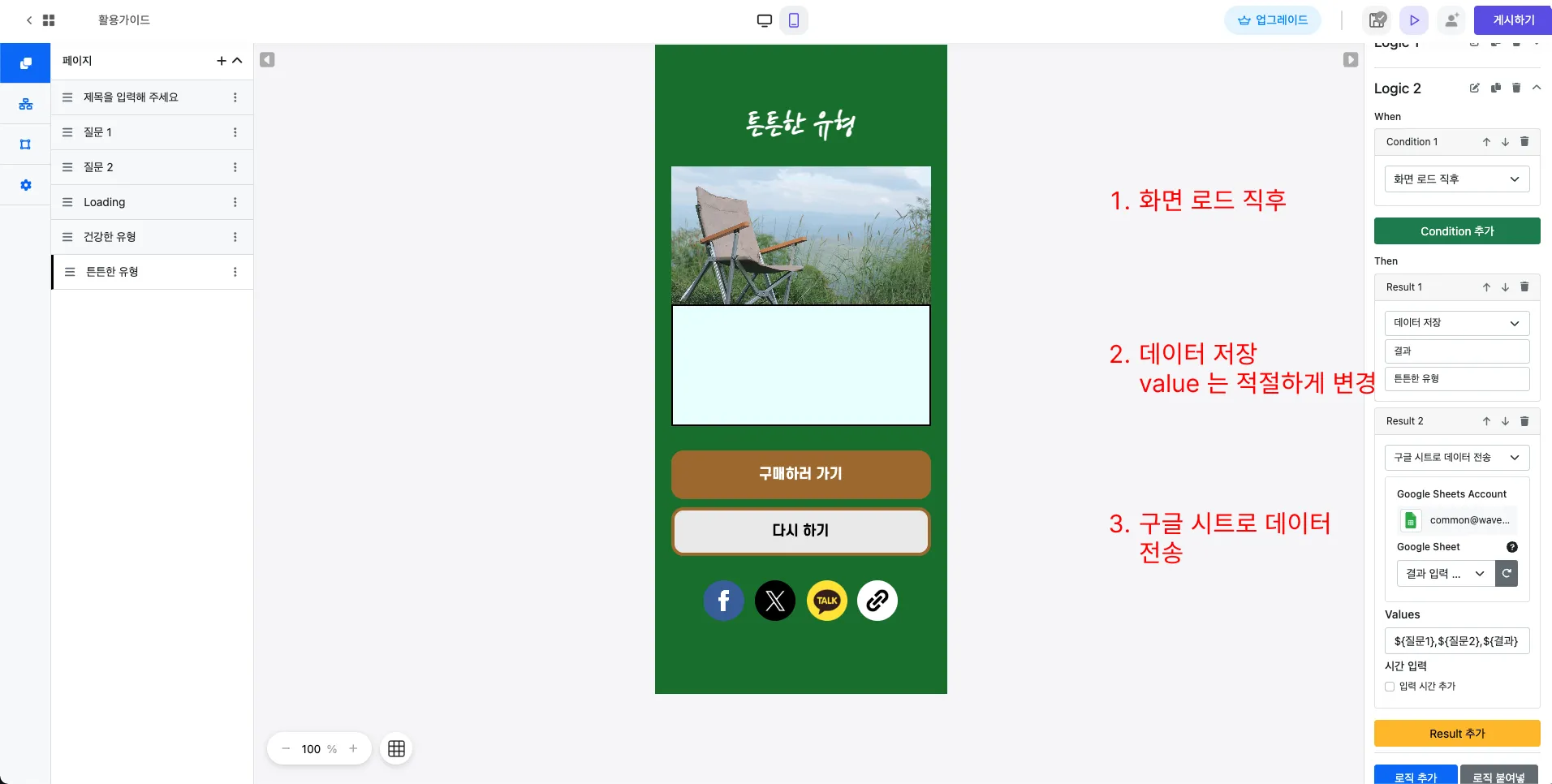
* 결과 페이지로 이동해 주세요.
* 아무것도 선택하지 않은 상태에서 아래와 같은 로직을 추가해 주세요.
  * <mark style="color:blue;">Condition 유형 : 화면 로드 직후</mark>
  * <mark style="color:blue;">Result1 유형 : 데이터 저장</mark>
    * <mark style="color:blue;">key : 결과</mark>
    * <mark style="color:blue;">value : 건강한 유형</mark>
    * <mark style="color:blue;">( \* value 는 적절하게 입력해 주세요 )</mark>
  * <mark style="color:blue;">Result2 유형 : 구글 시트로 데이터 전송</mark>
    * <mark style="color:blue;">Google Sheets Account : 구글 스프레드 시트 계정 선택</mark>
    * <mark style="color:blue;">Google Sheet : 데이터를 입력할 구글 스프레드 시트 선택</mark>
    * <mark style="color:blue;">Values : ${질문1},${질문2},${결과}</mark>

<figure><img src="https://www.waveon.io/_ipx/f_webp/static/img/guide/quiz-collect-user-selection-result.png" alt=""><figcaption></figcaption></figure>

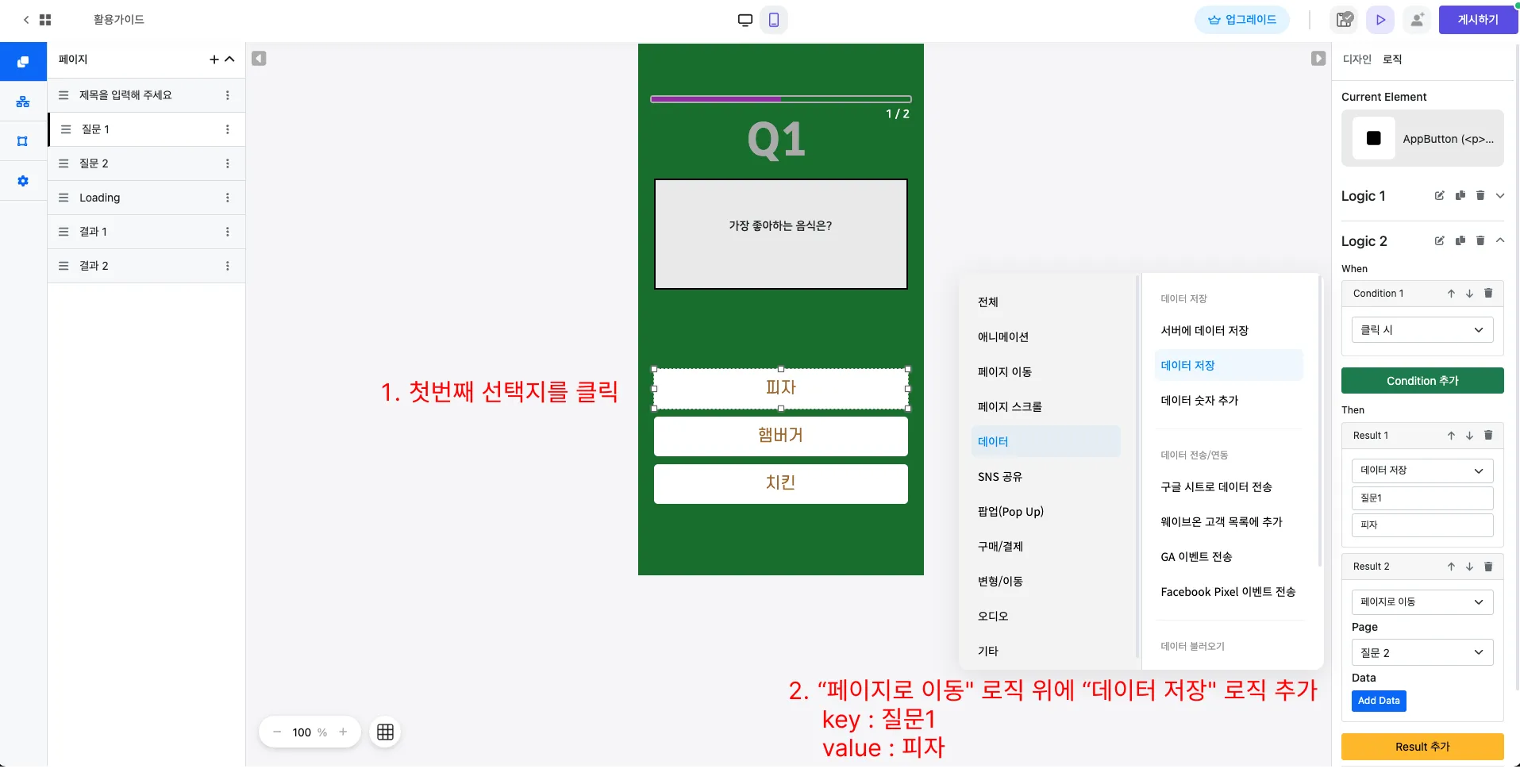
* 동일한 로직을 다른 결과 페이지에도 모두 넣어주세요.

<figure><img src="https://www.waveon.io/_ipx/f_webp/static/img/guide/quiz-collect-user-selection-result2.png" alt=""><figcaption></figcaption></figure>

* 이제 테스트를 하면 선택한 구글 스프레드 시트에 사용자가 선택한 선택지와 결과가 입력 됩니다.

---

# Agent Instructions: Querying This Documentation

If you need additional information that is not directly available in this page, you can query the documentation dynamically by asking a question.

Perform an HTTP GET request on the current page URL with the `ask` query parameter:

```
GET https://docs.waveon.io/quiz-deprecated/collect-user-selections.md?ask=<question>
```

The question should be specific, self-contained, and written in natural language.
The response will contain a direct answer to the question and relevant excerpts and sources from the documentation.

Use this mechanism when the answer is not explicitly present in the current page, you need clarification or additional context, or you want to retrieve related documentation sections.